
webtempus.ch
by Helmut Ludwig Hummel
services — business & private
in computer and office



ScreenSharing via AnyDesk
(macOS and Windows, iOS, Android, Linux, FreeBSB, Rasspery Pi)
ScreenSharing via AnyDesk (Apple macOS, Windows, iOS, Android, Linux, FreeBSD, Rasberry Pi)
für den Online Support, mit AUDIO
1. Systemvoraussetzungen und Download

Die Software ist für Sie kostenlos !
The software is free for you !
AnyDesk funktioniert auf allen Ihren Geräten und Betriebssystemen: Windows, macOS, iOS, Android, Linux, FreeBSD und sogar Ihrem Raspberry Pi!
Windows
Windows 10
(altere Windows-Version mit anderen
Programmversionen)
Mac
macOS Tahoe 26.3.1 und neuer
macOS Catalina 10.15
macOS Mojave 10.14
macOS HighSierra 10.13
(altere macOS-Version mit anderen
Programmversionen)
ScreenSharing via AnyDesk (Apple macOS, Windows, iOS, Android, Linux, FreeBSD, Rasberry Pi)
für den Online Support, mit AUDIO
2a. Anleitung — Installation (Windows-Computer)
Bitte benutzen Sie den Link zum Download des Installationsprogramms und installieren Sie das Programm.
Please use the link to download the installation program and install the program.
ScreenSharing via AnyDesk (Apple macOS, Windows, iOS, Android, Linux, FreeBSD, Rasberry Pi)
für den Online Support, mit AUDIO
2b. Anleitung — Installation (Apple macOS-Computer)
Installation (einmalig):
Téléchargez le programme (d'installation). Dans le dossier « Téléchargements », vous trouverez le programme « TeamViewer.dmg ». Double-cliquez dessus. Lancez le processus d'installation. Une fois celui-ci terminé, supprimez « AnyDesk.dmg ». Il peut maintenant être supprimé du dossier Téléchargements. Lancez le programme « AnyDesk.app » à partir du Launchpad (fusée). Une autorisation administrateur est requise lors du premier démarrage ! Si nécessaire, allez également dans « Icône Apple | Préférences Système | Sécurité ».
Donnez-moi l'adresse cible d'AnyDesk.
ScreenSharing via AnyDesk (Apple macOS, Windows, iOS, Android, Linux, FreeBSD, Rasberry Pi)
für den Online Support, mit AUDIO
3. Anleitung — Start und Zugriff auf den Bildschirm gewähren (Apple macOS und Windows)
Das Programm unterstützt ScreenSharing, mit Audio.
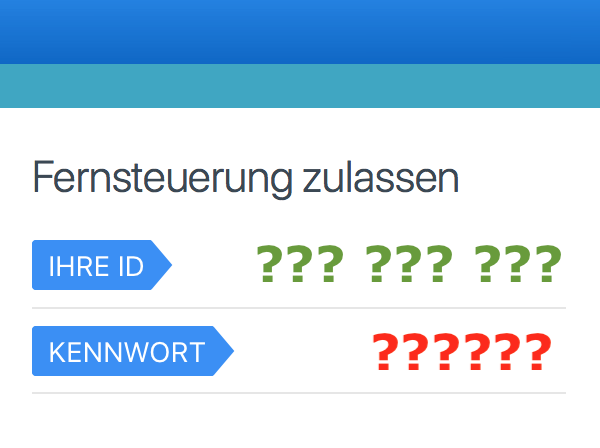
Starten Sie das Programm.Teilen Sie mir via Telefon die ID und das Kennwort mit.Bestätigen Sie das Screensharing.
The application supports screensharing without audio.
Start the application.Tell me your ID and password.Accept screensharing.
Helmut Ludwig Hummel
webtempus.ch
services — business & private
L'Adresse
Helmut Ludwig Hummel
Chalberweidstrasse 43
8127 Forch
Suisse
La Communication
+41 79 220 48 14
info@webtempus.ch
webtempus.ch
Le Copyright
© 2021 by webtempus.ch
Ce site utilise des cookies
L'Information
L'Avis légal